
How to Create a Quote (Web)

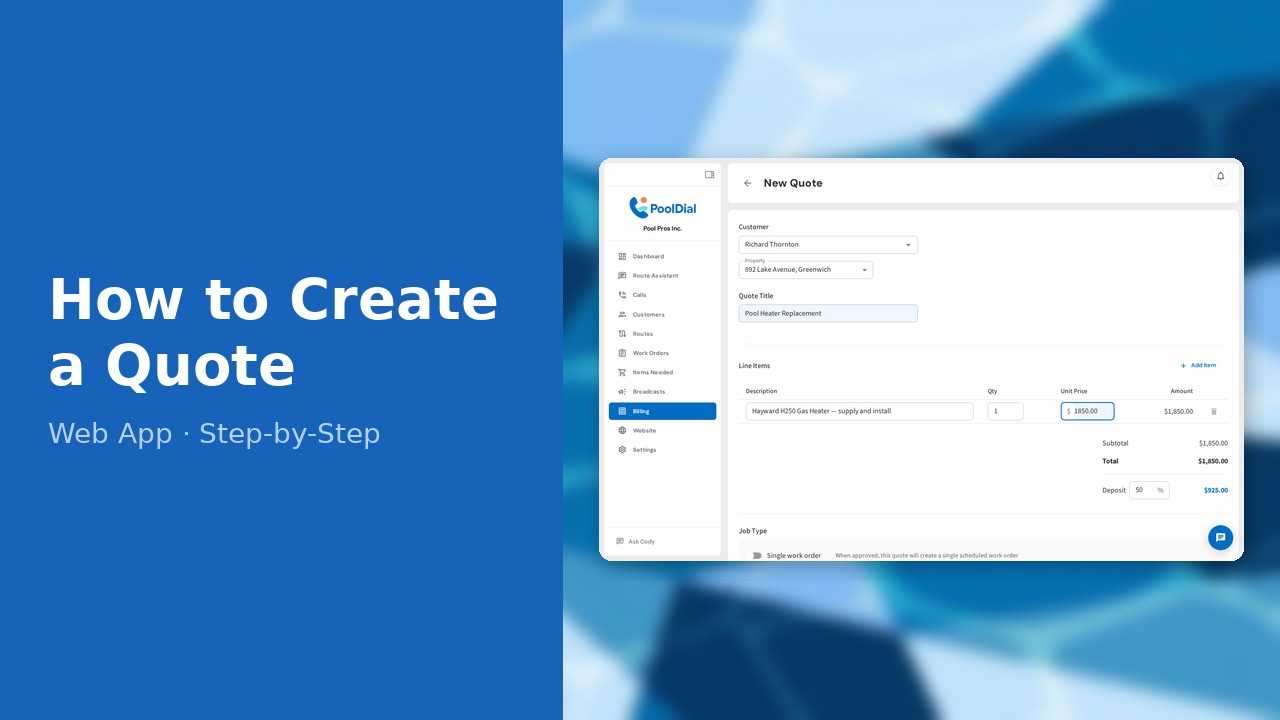
This guide walks you through how to create a quote (web) in PoolDial, step by step.
This guide covers 8 steps and takes about a minute to complete.
Video Walkthrough
Prefer to watch? Here's a full video walkthrough of How to Create a Quote (Web).
1. Go to Billing — Quotes tab
Click Billing in the left sidebar, then click the Quotes tab.
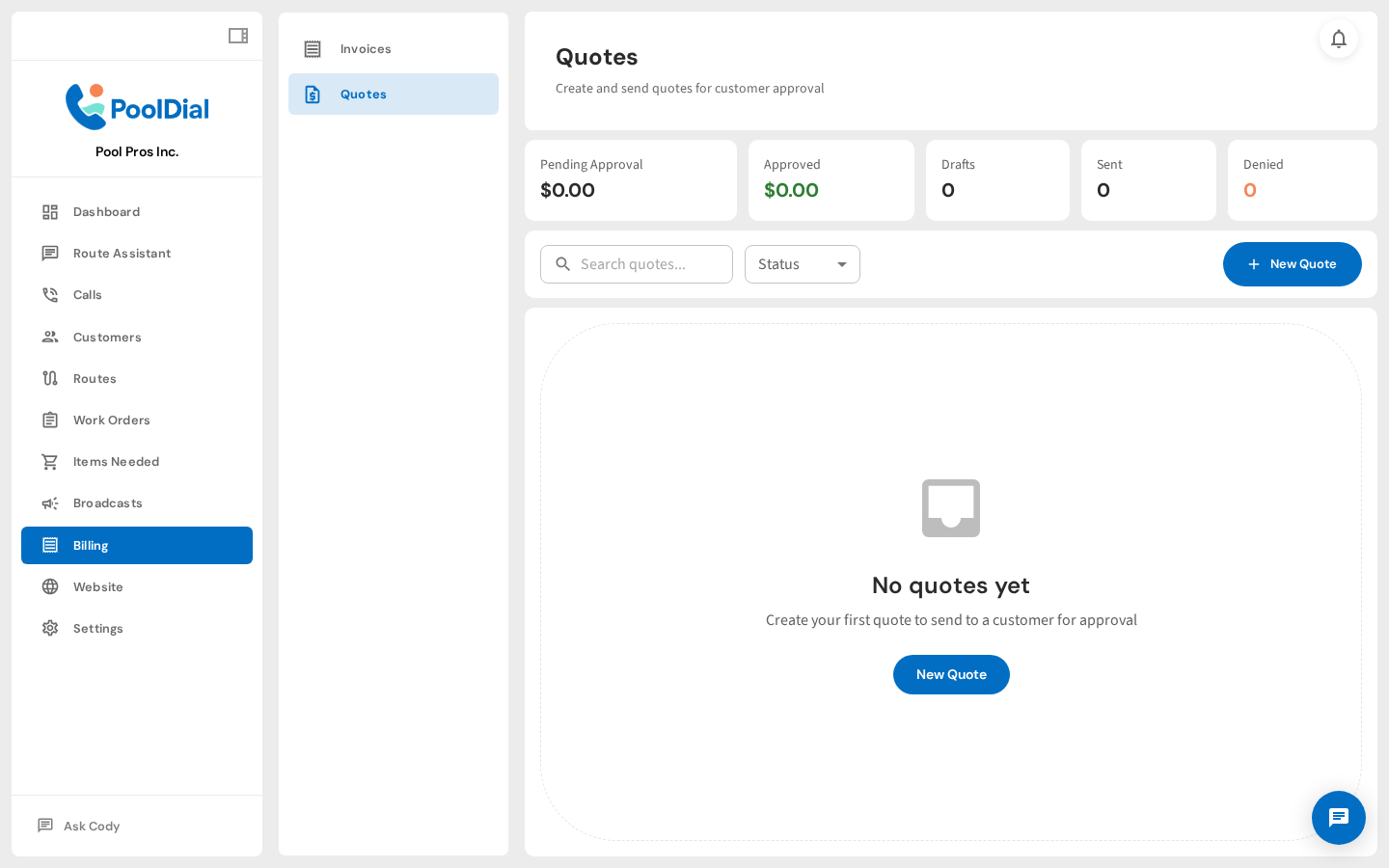
2. Click + New Quote
Click + New Quote to open the quote creation page.
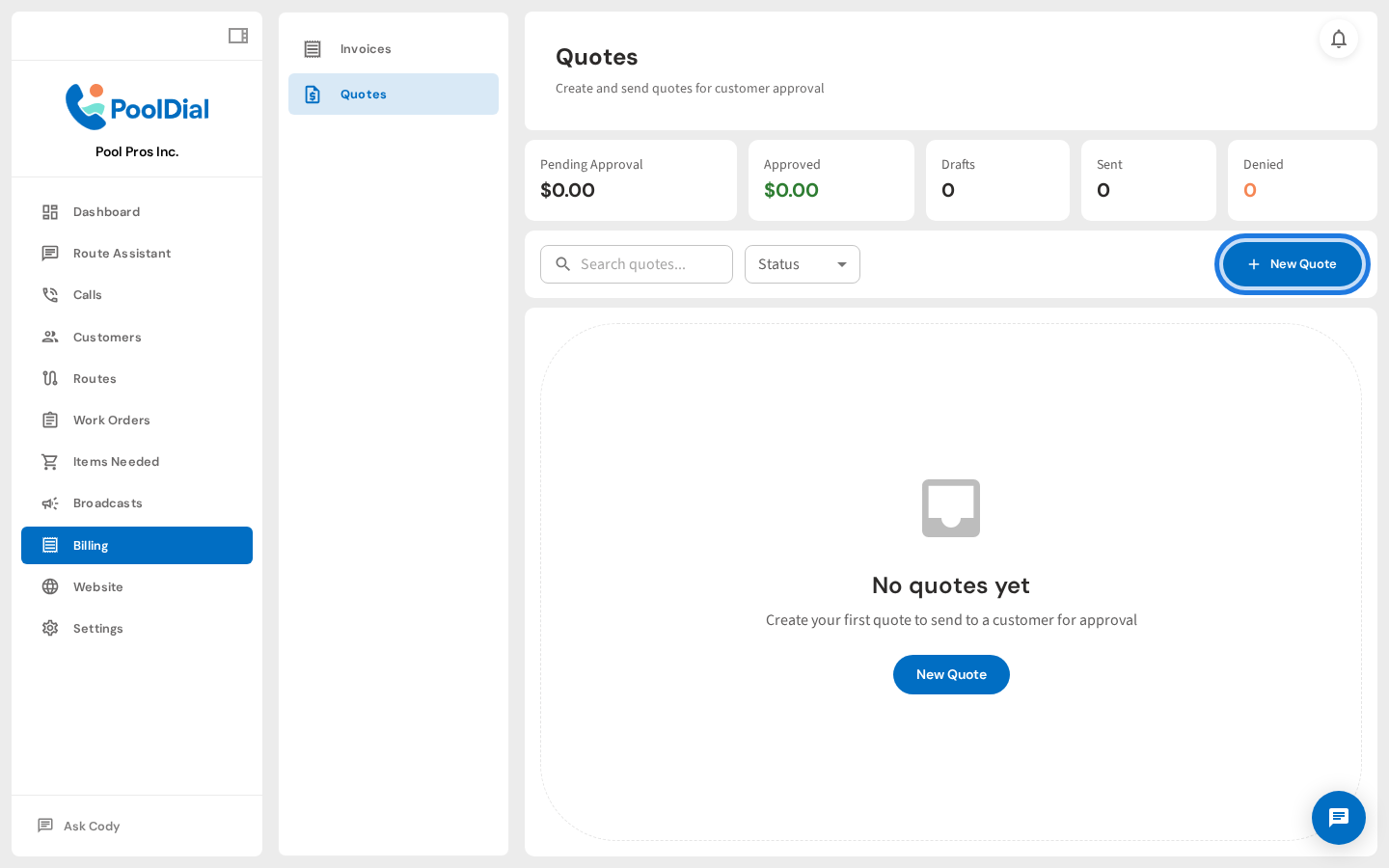
3. Select the customer for this quote
Select the customer this quote is for. The list pre-loads all active customers.
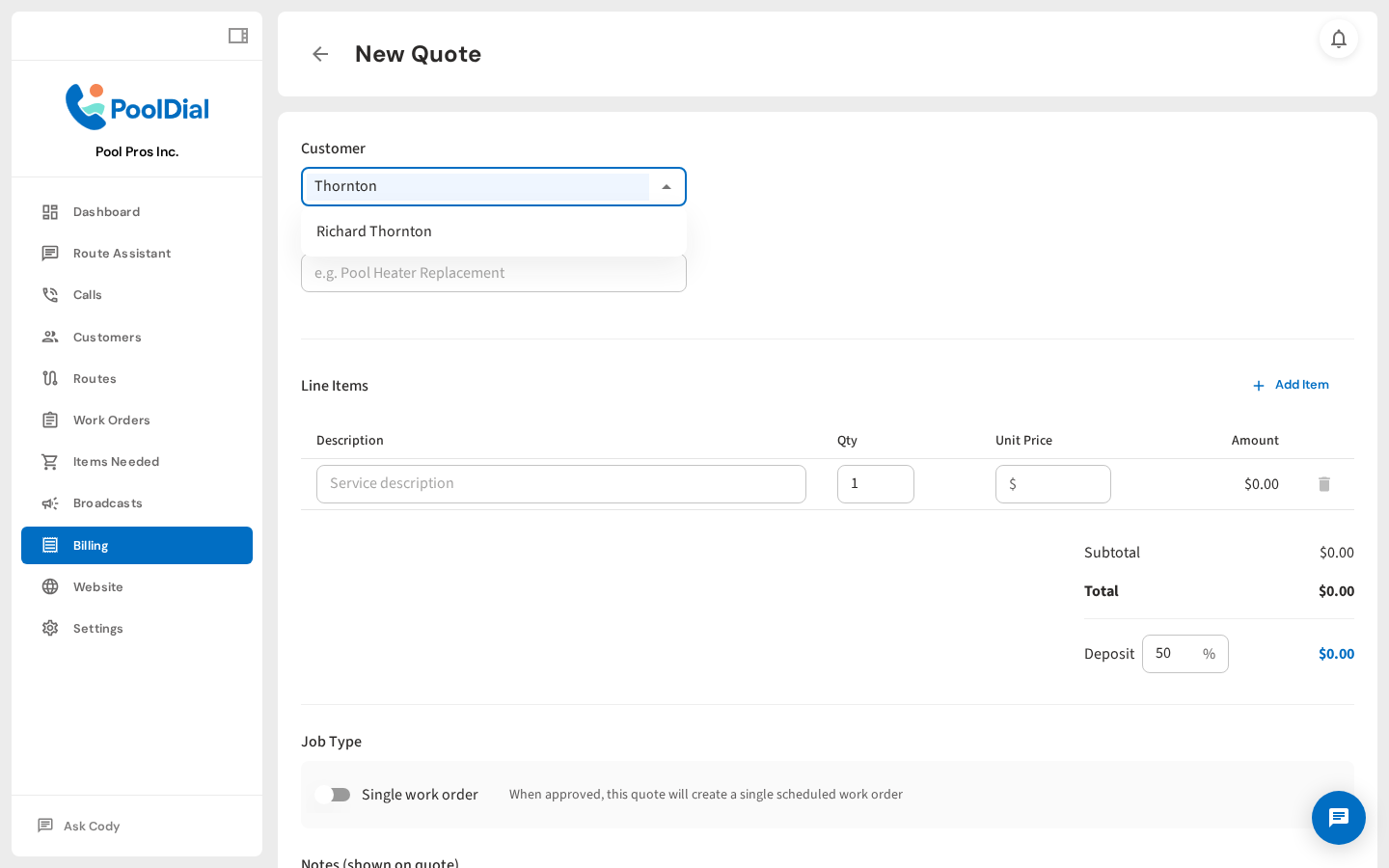
4. Enter the quote title and line items
Give the quote a descriptive title like Pool Heater Replacement — this appears at the top of the quote the customer sees.
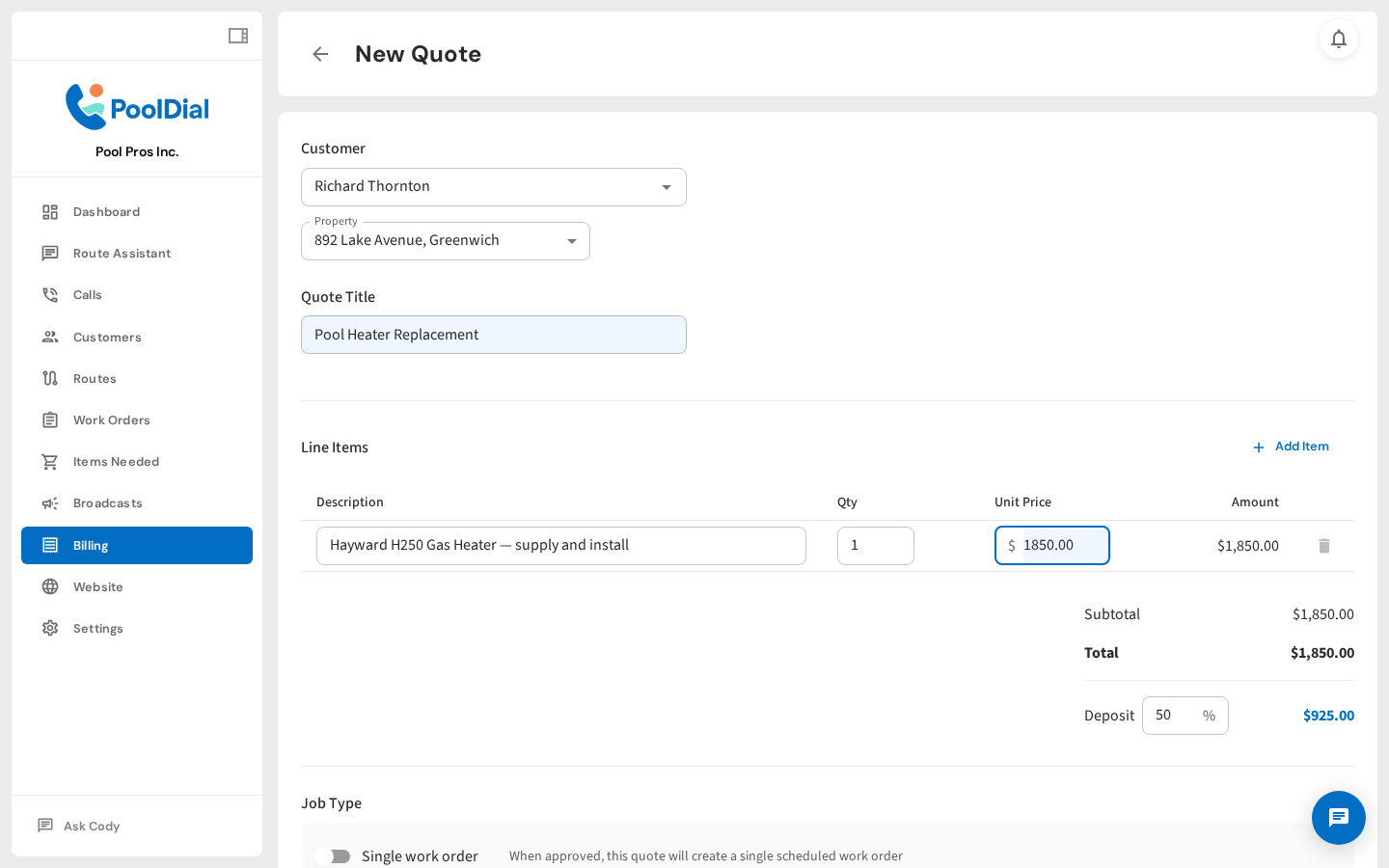
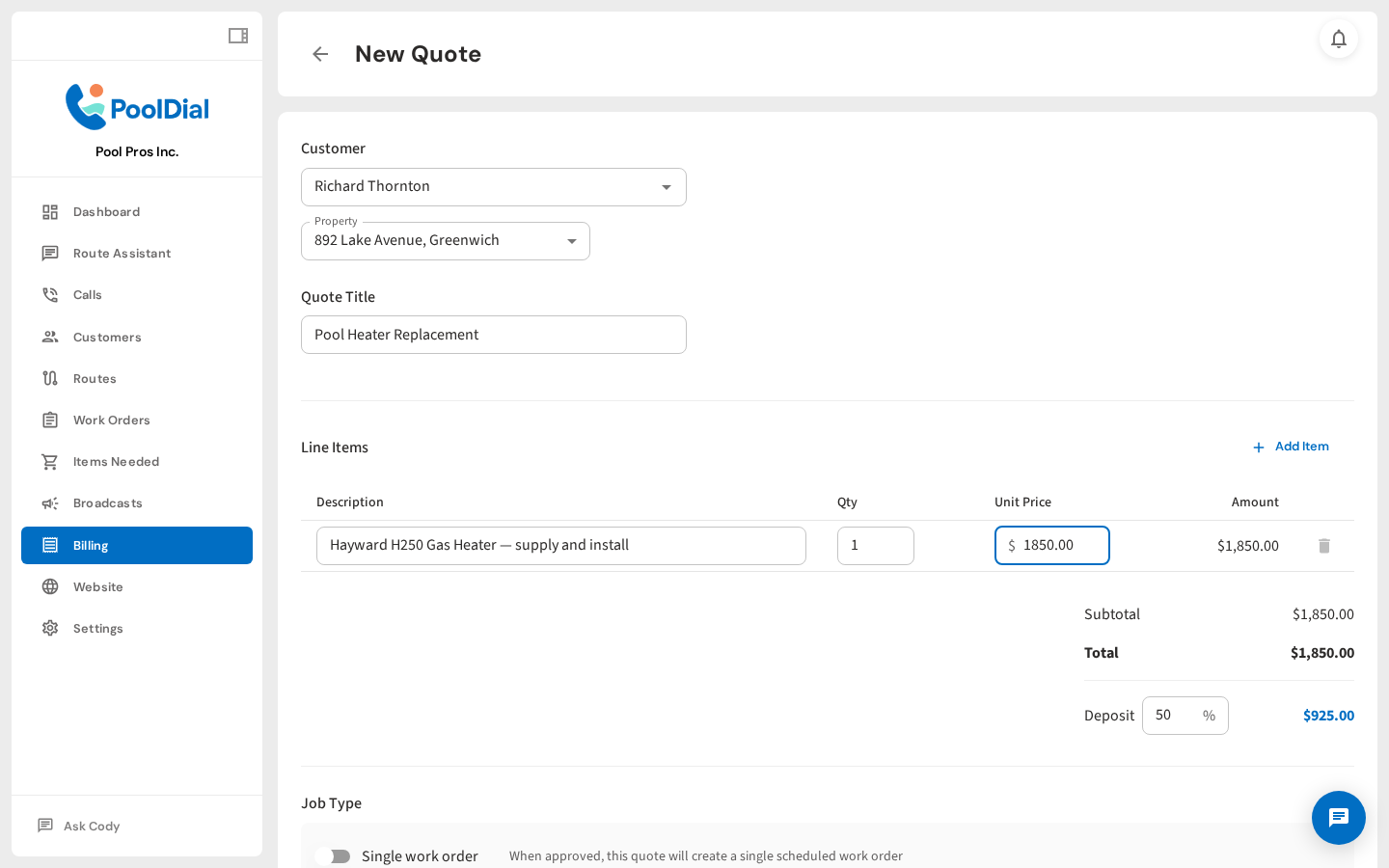
5. Line items with automatic subtotal calculation
Add line items — each service or part with a description, quantity, and unit price. PoolDial calculates the subtotal automatically.
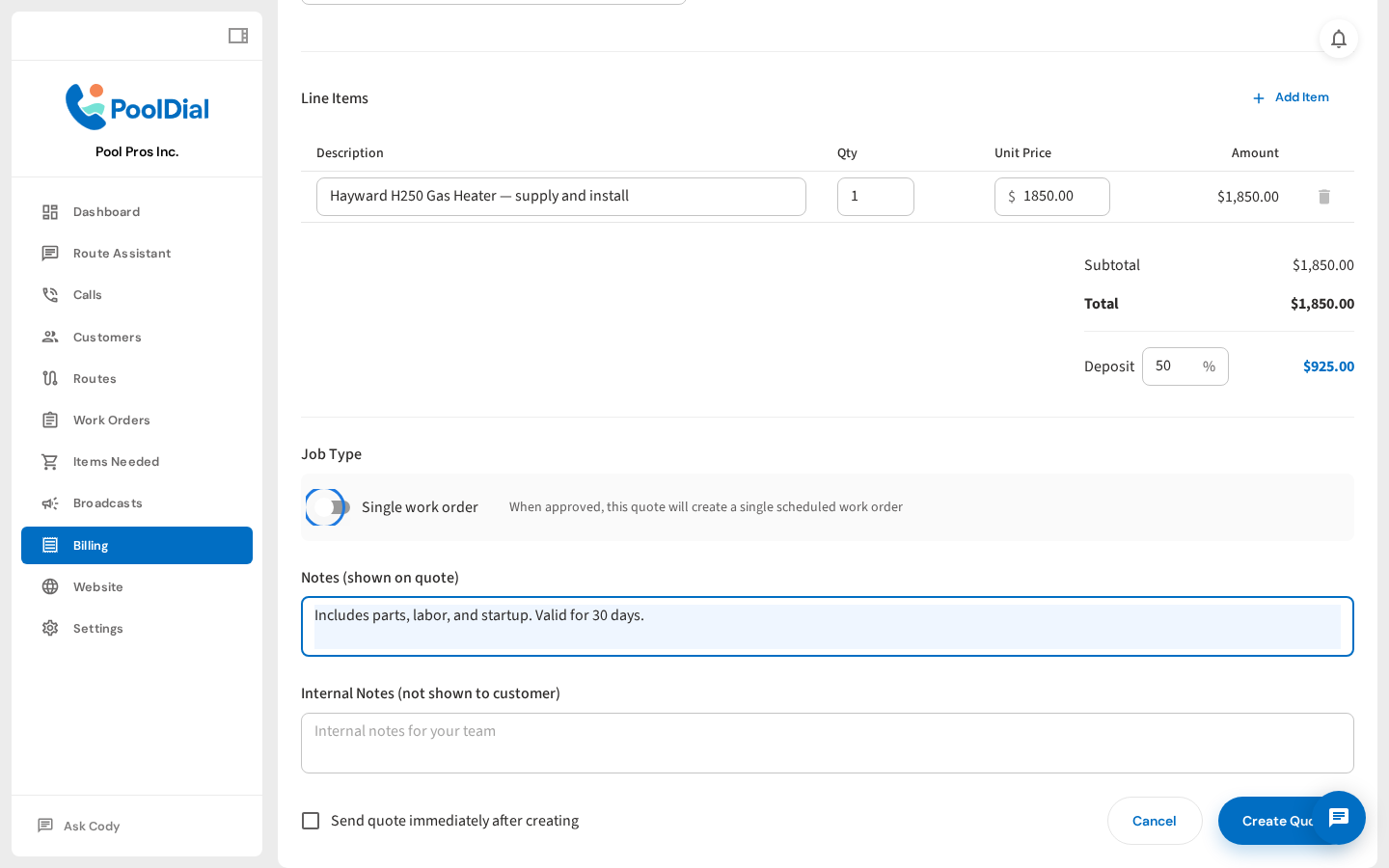
6. Set deposit %, add notes, and choose whether to send immediately
Set the deposit percentage required to approve the quote. Add customer-facing notes and check Send immediately to email it on save.
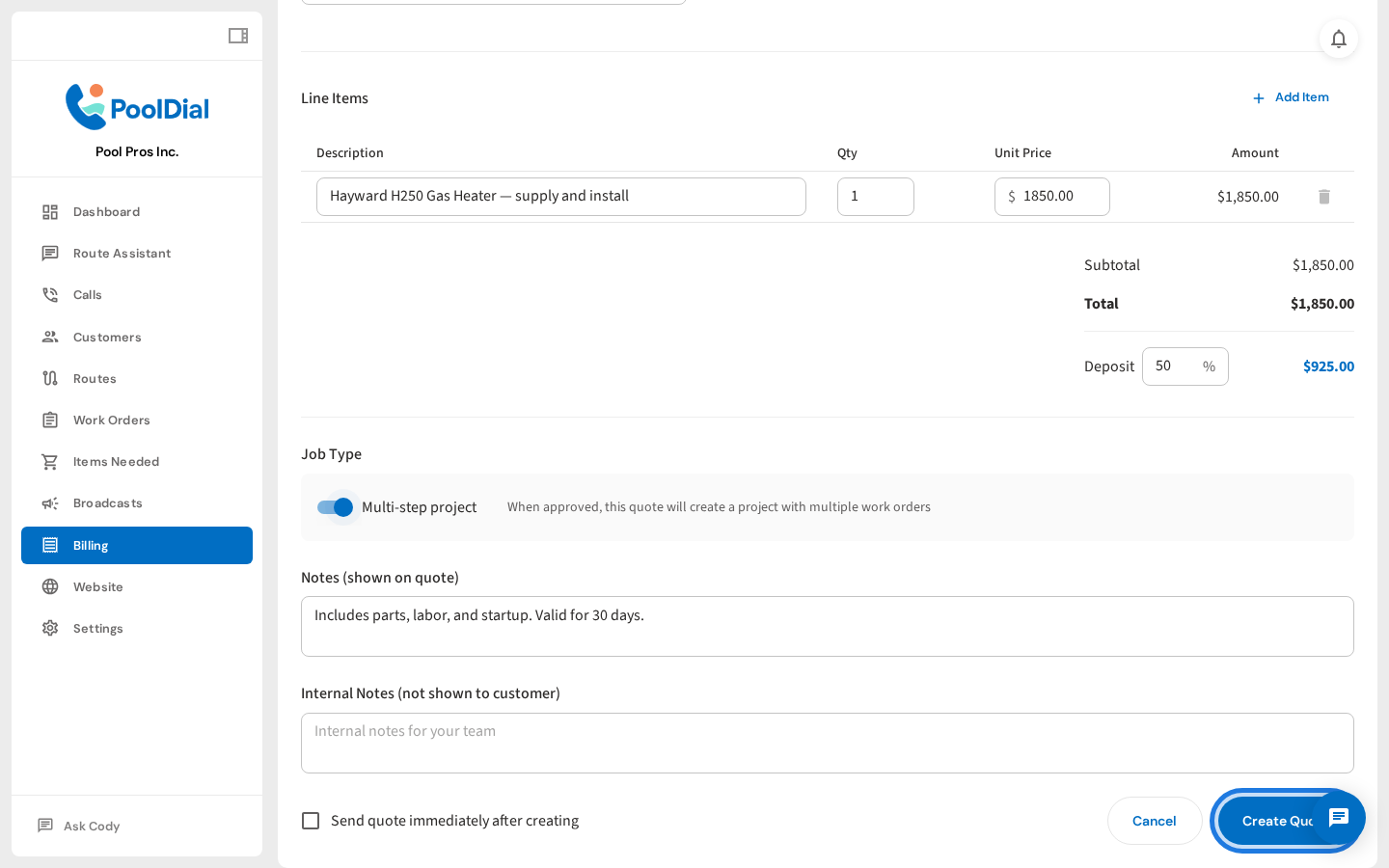
7. Click Create Quote to save and send
Click Create Quote. PoolDial saves the quote and, if you checked the box, sends a branded email to the customer with an approval link.
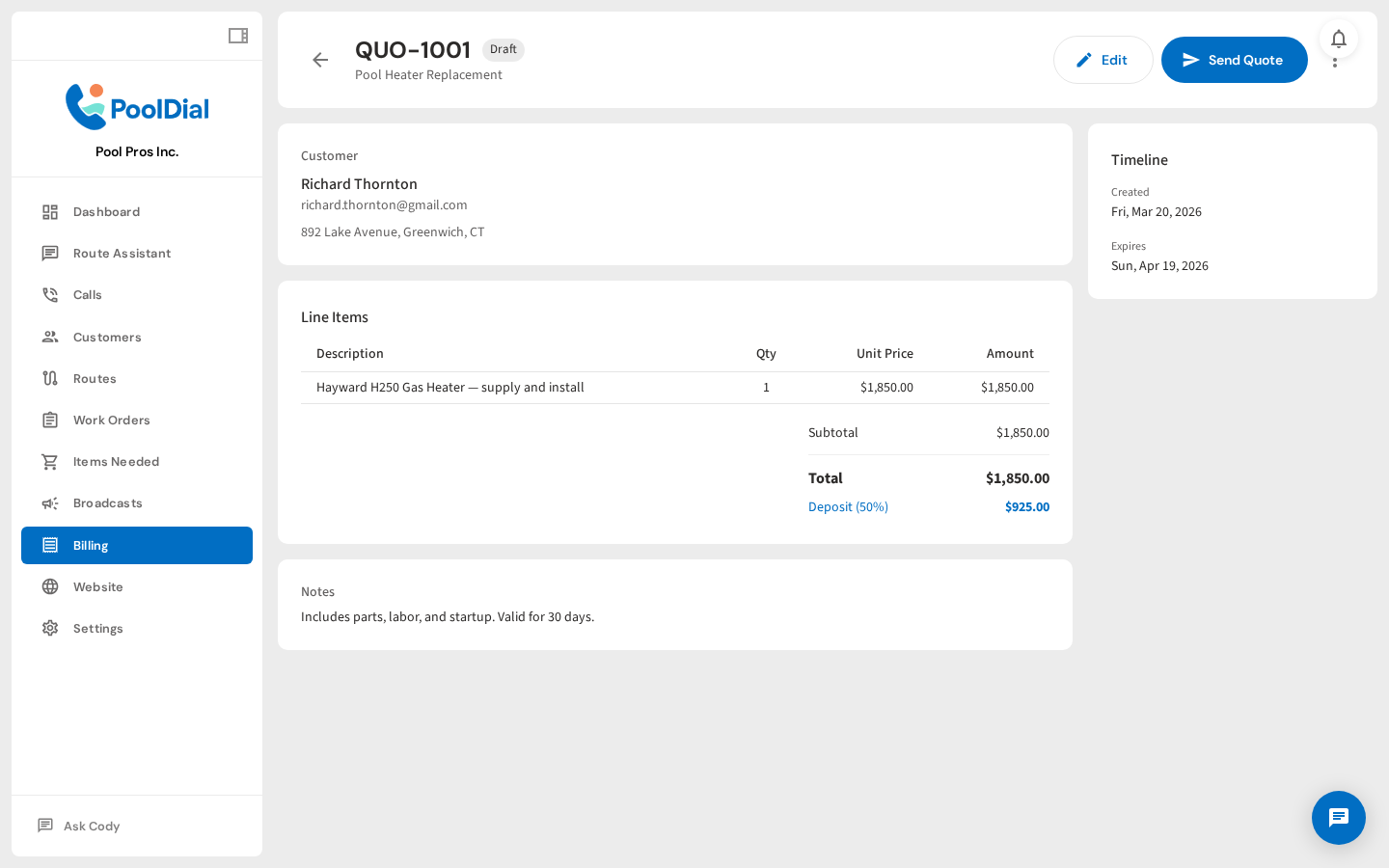
8. Quote detail page — view, resend, or convert to work order
The quote detail page lets you view, resend, edit, or convert the quote to a work order once approved.
Not using PoolDial yet?
Manage your customers, routes, billing, and more — all in one place.
Start Free Trial