
How to Invite a Team Member (Web)

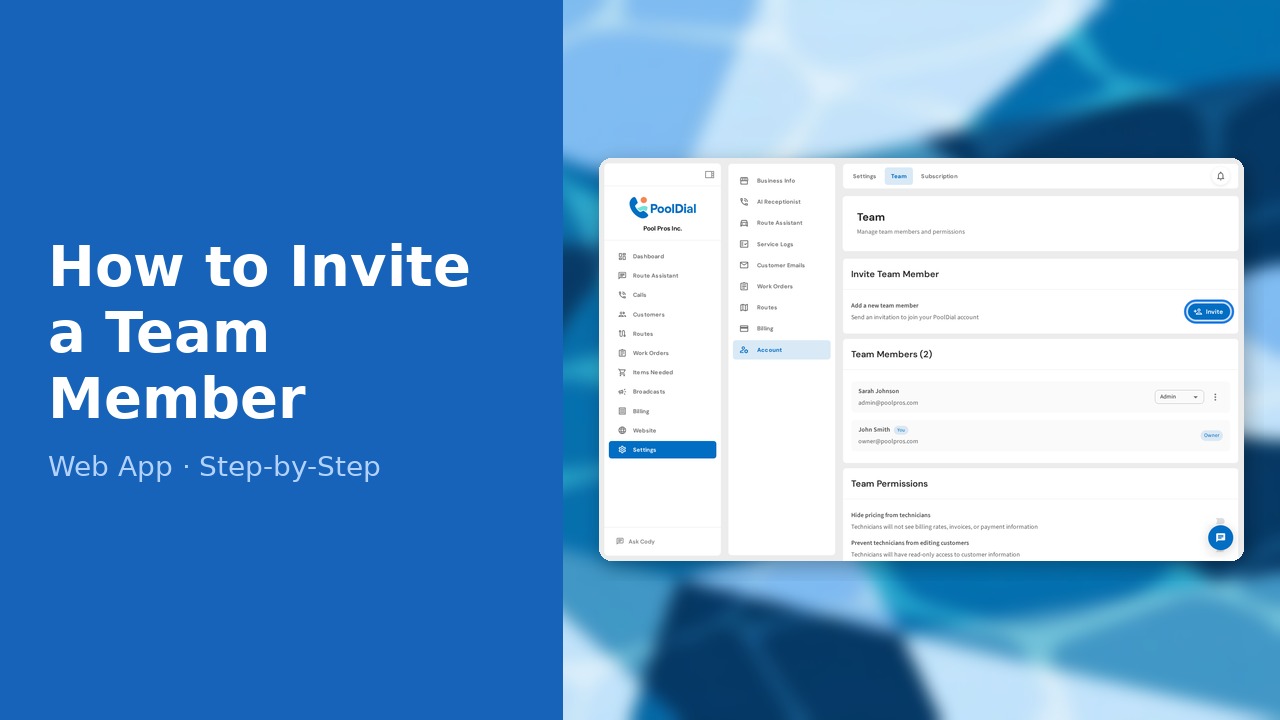
This guide walks you through how to invite a team member in PoolDial, step by step.
This guide covers 6 steps and takes about a minute to complete.
Video Walkthrough
Prefer to watch? Here's a full video walkthrough of How to Invite a Team Member.
1. Go to Settings — Team tab
Click Settings in the left sidebar, then select the Team tab.
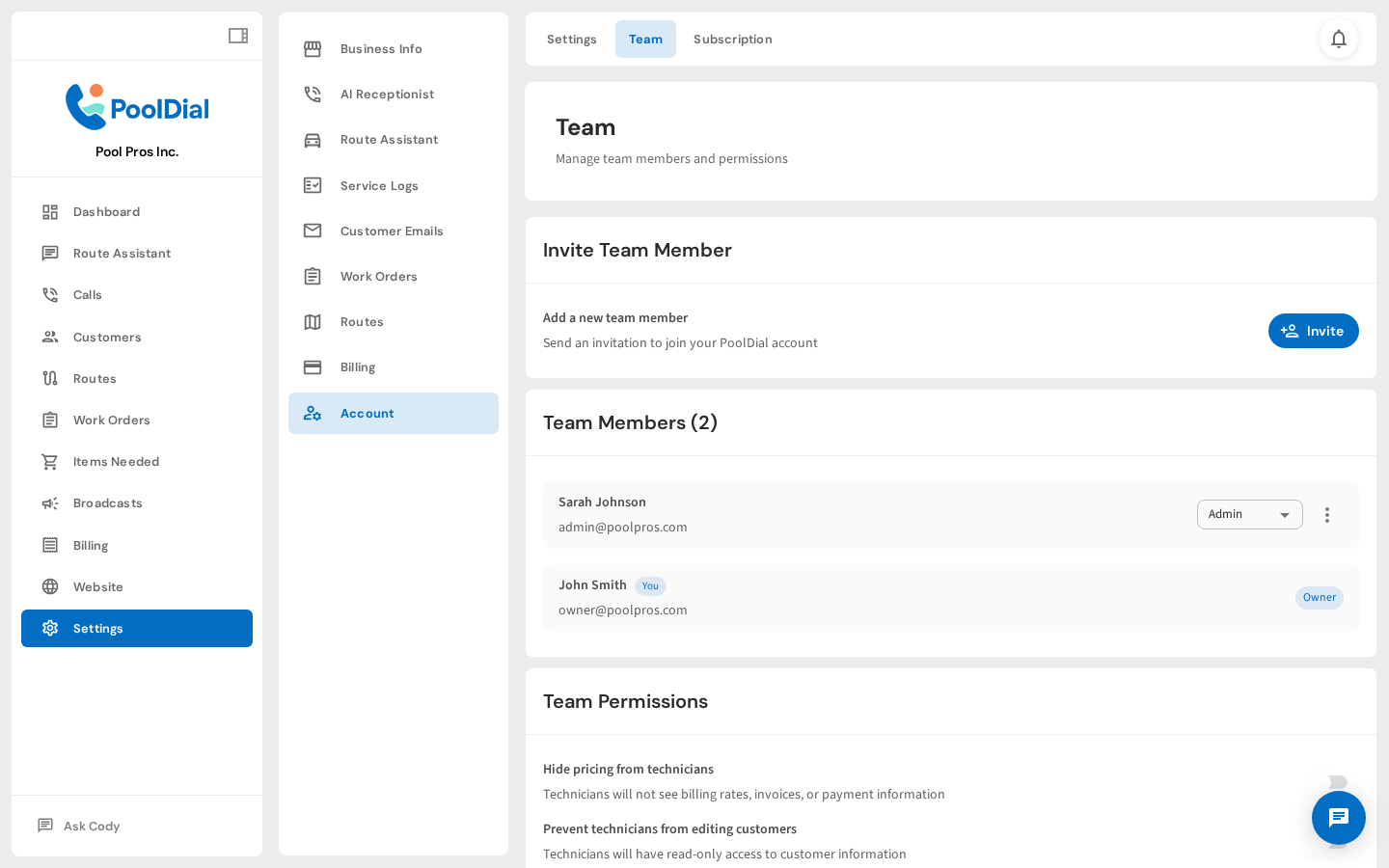
2. Team page — click Invite to add a team member
The Team page shows all current team members. Click Invite to add someone new.
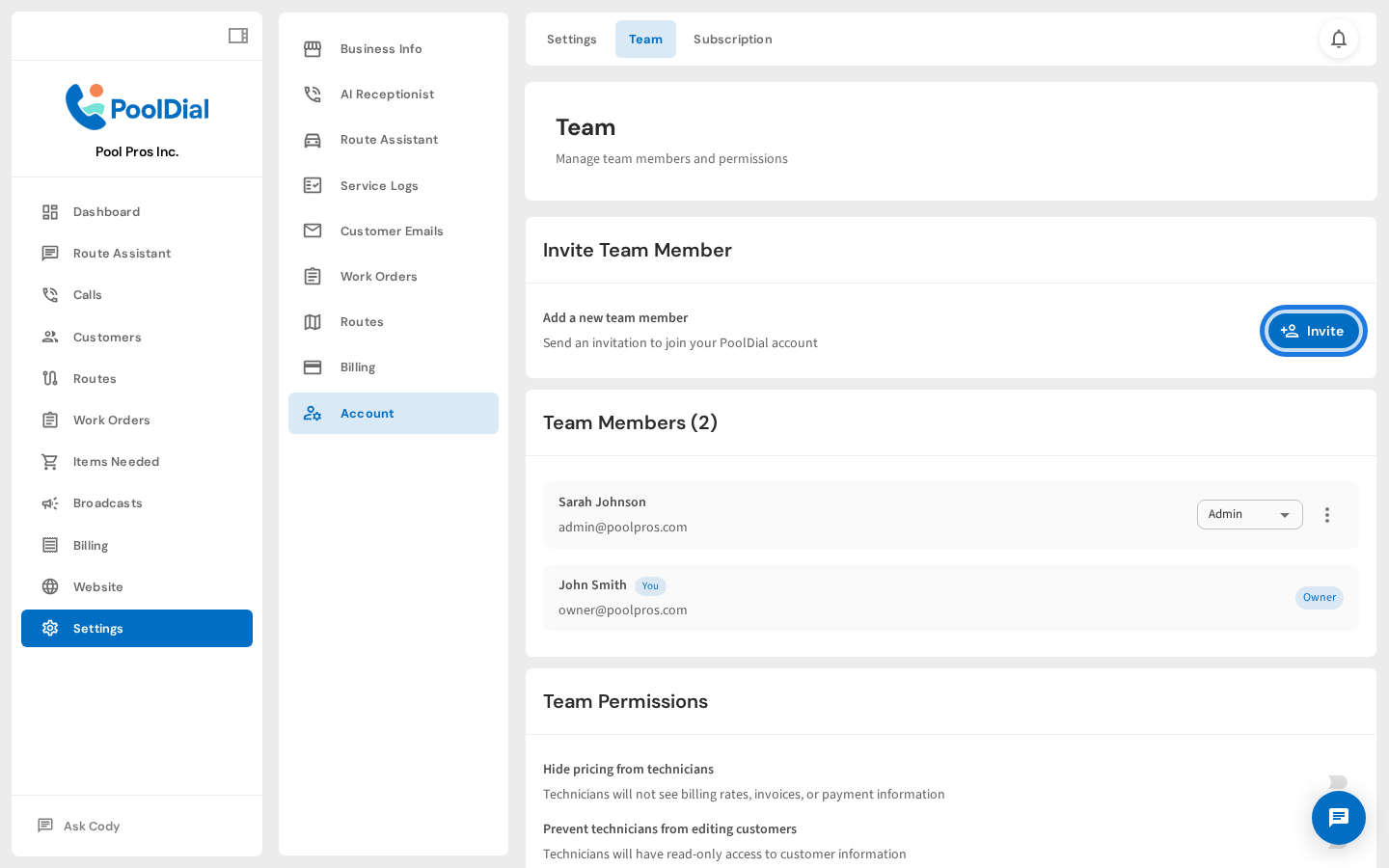
3. Enter email address and optional name
Enter the team member's email address. You can optionally add their first and last name so they're recognized before they accept.
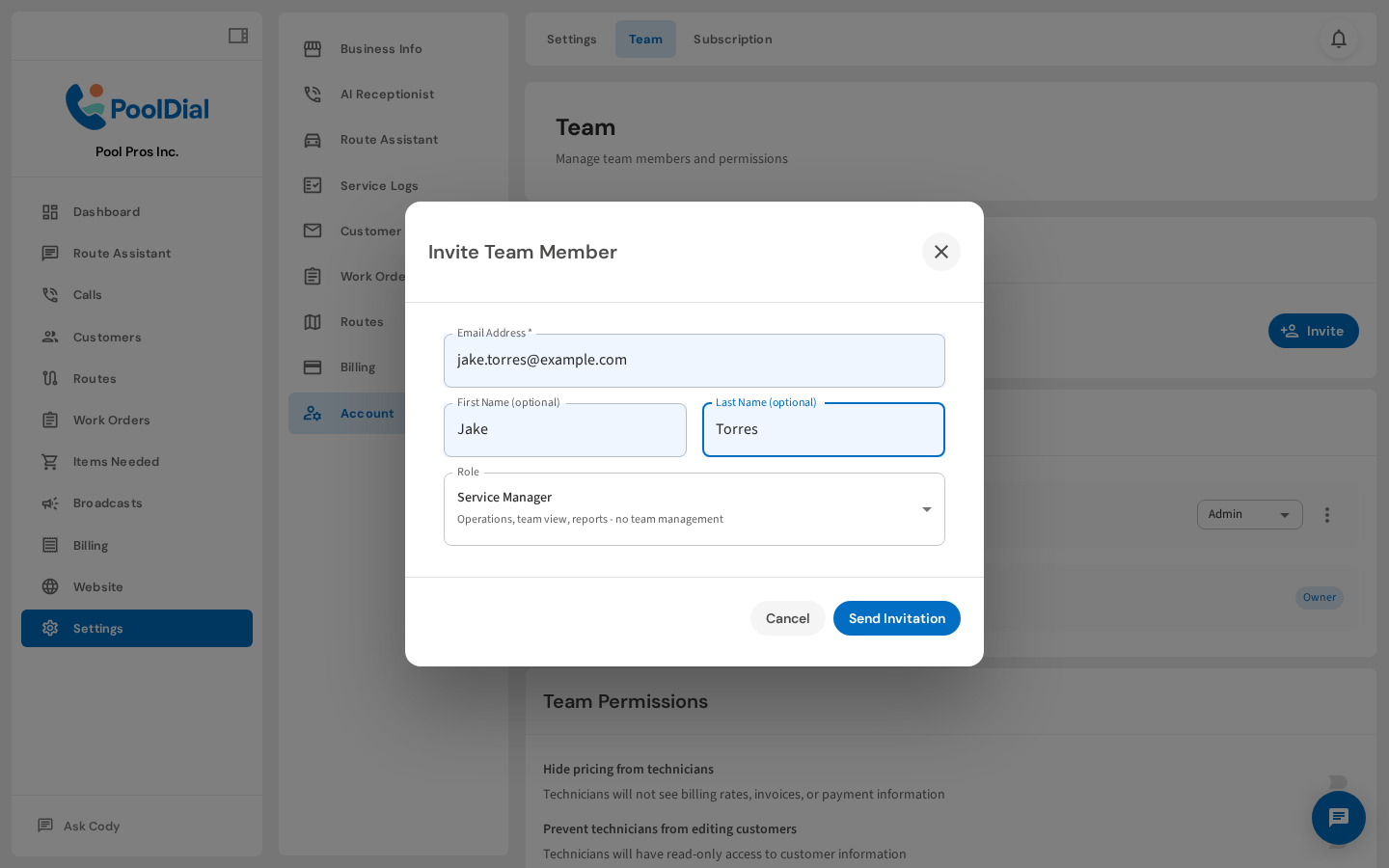
4. Select a role — Technician, Service Manager, or Admin
Select a role that matches their responsibilities. Technician gets access to assigned routes only. Service Manager adds operations access. Admin gets nearly full access.
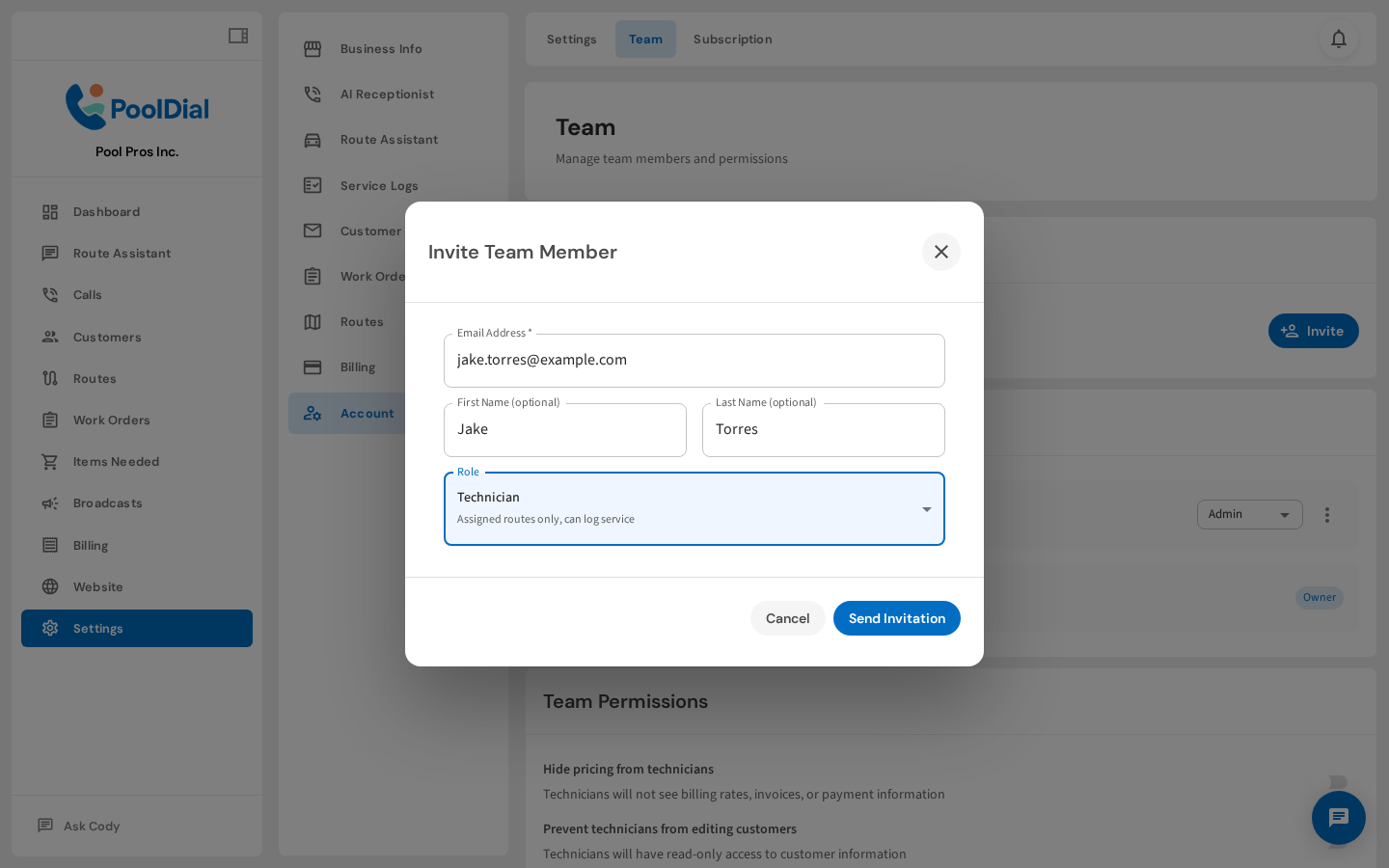
5. Click Send Invitation to email the invite
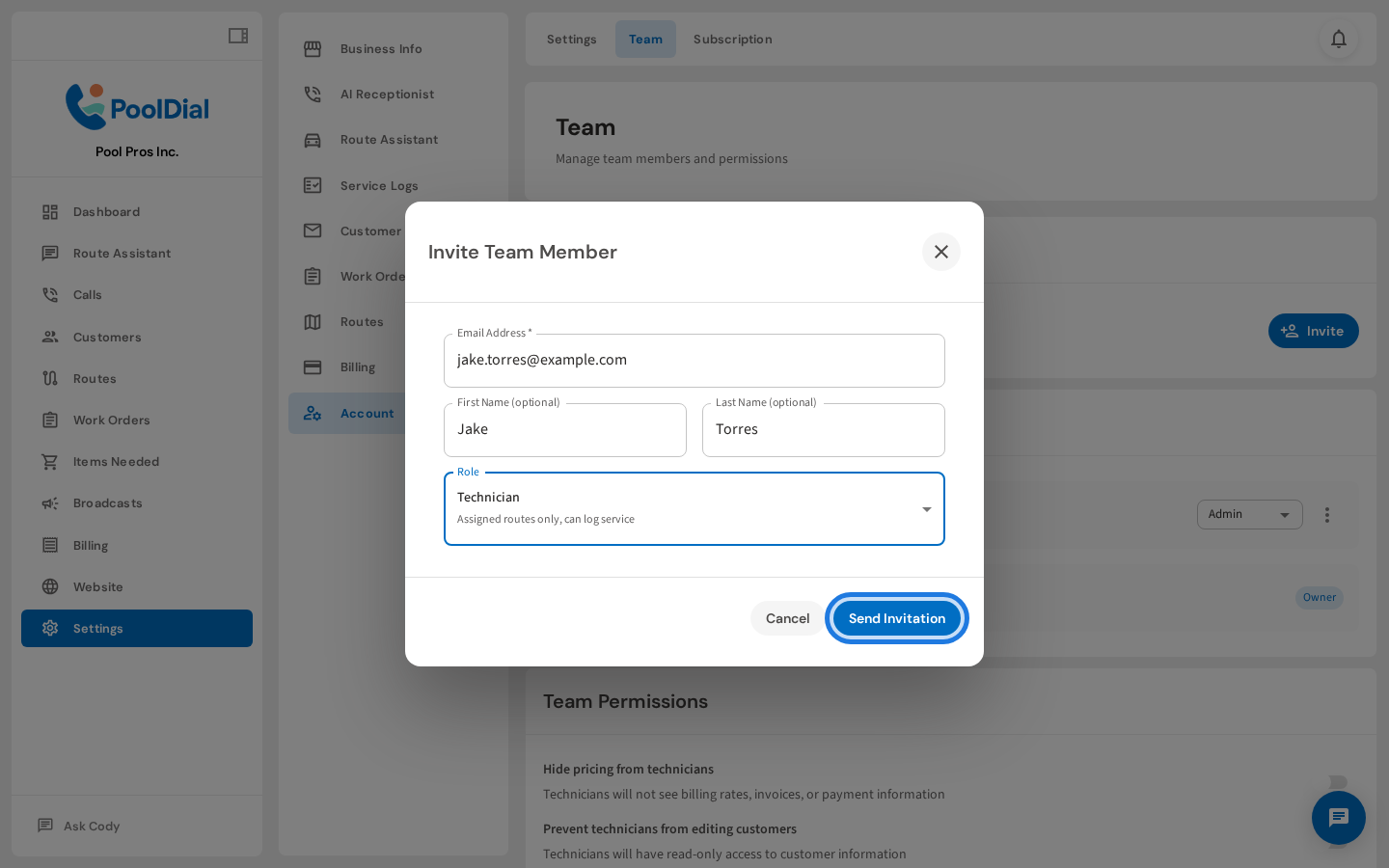
Click Send Invitation. PoolDial emails them a link to create their account and join your team.
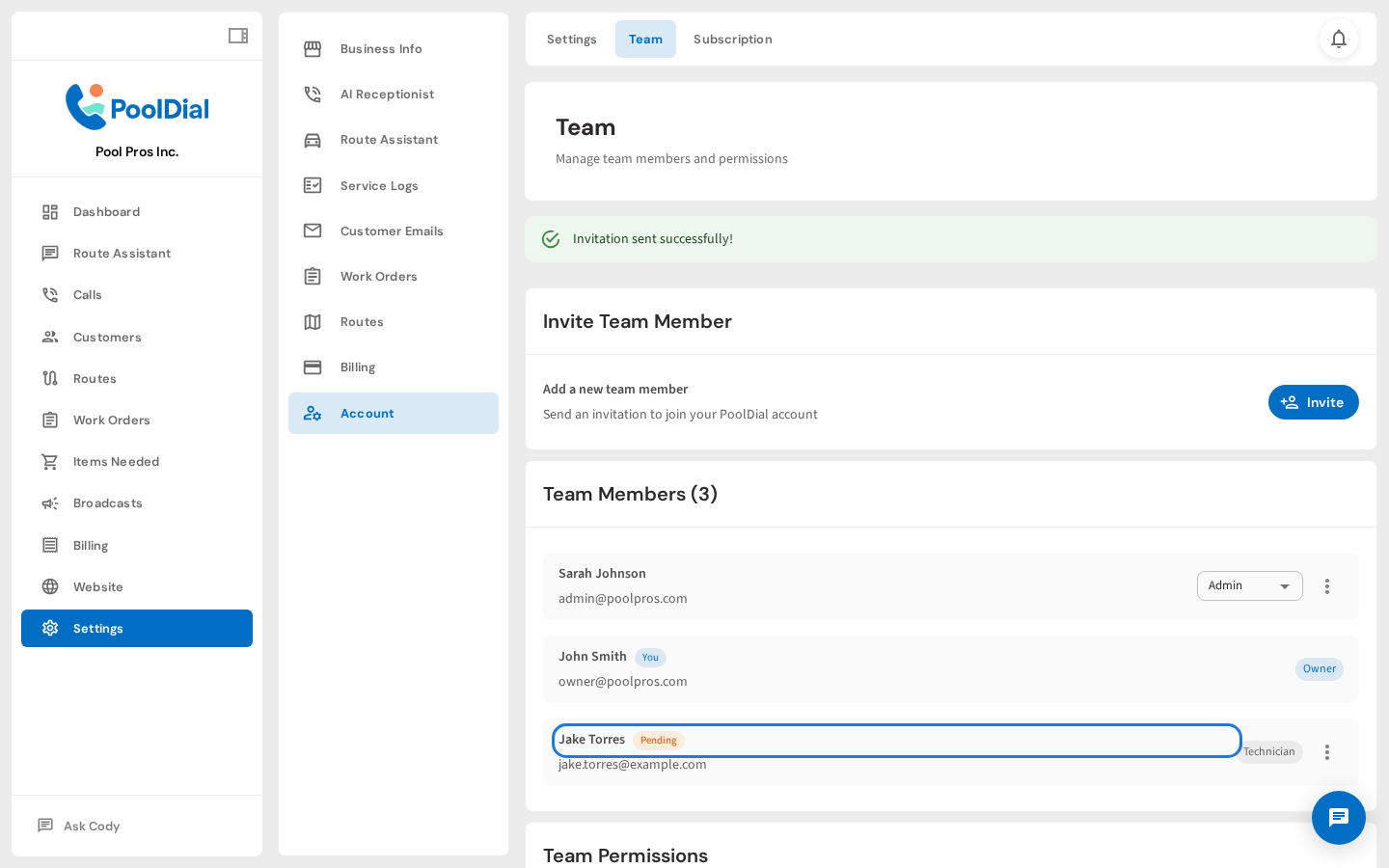
6. Jake Torres appears with a Pending badge until they accept
They appear in your team list with a Pending badge until they accept the invite. You can resend or cancel from the three-dot menu.
Not using PoolDial yet?
Manage your customers, routes, billing, and more — all in one place.
Start Free Trial